Frequently Asked Question
ITVDesk allows a Windows, Linux, or macOS computer to work as a professional virtual IP camera for Hikvision NVR / DVR systems. ITVDesk can expose desktop screens, selected application windows, webcams, RTSP/SRT/RTSPS sources, media sources, combined layouts, audio, events, OSD/subtitles, and other supported channels through ONVIF and direct stream protocols.
A common Hikvision integration starts with a desktop or workstation screen. In ITVDesk, create a virtual camera profile, select a source such as Computer Screen Live / Desktop Capture, test the stream, and then add ITVDesk to Hikvision as an ONVIF camera or direct RTSP/RTSPS stream.
Recommended setup flow
- Start the ITVDesk virtual camera and confirm that the channel is running.
- Try Quick Add in Hikvision if the recorder discovers ITVDesk automatically.
- If discovery does not work, use Manual Add via ONVIF.
- If you need direct stream input or additional channels, use Custom Protocol with RTSP or RTSPS URLs.
- For multi-channel ITVDesk devices, select the required digital channels in Hikvision and verify channel license usage.
Method 1: Quick Add in Hikvision
Use Quick Add when Hikvision automatically detects ITVDesk on the local network. This is usually the fastest method for a simple setup.
- Open Camera Management / IP Channel on the Hikvision recorder.
- Wait for Hikvision to discover the ITVDesk ONVIF device.
- Select the detected ITVDesk camera and add it.
- Enter the ITVDesk ONVIF username and password if authentication is enabled.
- Wait until the camera status becomes Online.
Use this method when: Hikvision sees ITVDesk automatically and you only need the detected channel or device entry.
Method 2: Manual Add via ONVIF
Use Manual Add when Quick Add does not find ITVDesk, when ONVIF discovery is blocked by network policy, or when you want to enter the camera settings directly.
- Open Camera Management / IP Channel.
- Choose Manual Add.
- Set protocol to ONVIF.
- Use the ITVDesk computer IP address.
- Use the ITVDesk ONVIF / Web management port configured in ITVDesk.
- Enter the ONVIF username and password configured in ITVDesk.
- Save and wait until the recorder shows the channel as Online.
Use this method when: automatic discovery is unavailable, the recorder is on a routed network, or you need predictable manual configuration.
Method 3: Custom Protocol with RTSP / RTSPS
Use Hikvision Custom Protocol when you want to add a direct ITVDesk stream URL, when ONVIF discovery is not suitable, or when you need to add additional ITVDesk channels manually.
- In ITVDesk, retrieve the direct stream URL for the required channel/profile.
- Use RTSP for broad compatibility.
- Use RTSPS where encrypted RTSP transport is supported by the target Hikvision model/firmware.
- Create or edit a Hikvision Custom Protocol entry and paste the ITVDesk stream path.
- Add the camera/channel using that custom protocol.
Use this method when: you need direct stream control, ONVIF is not available, or additional ITVDesk channels should be added separately.
ITVDesk capabilities for Hikvision projects
Depending on the Hikvision model, firmware, recording configuration, and enabled ITVDesk source, ITVDesk can provide more than a simple screen stream:
- Desktop and application streaming: full desktop, selected application windows, dashboards, POS and workstation screens.
- Multiple source types: webcam, external RTSP/SRT/RTSPS sources, media files, and combined layouts.
- Audio support: microphone/audio streaming and two-way audio / ONVIF audio backchannel where supported by the recorder/client workflow.
- PTZ Desktop: desktop interaction/control workflows for supported integrations.
- OSD and subtitles: timestamp, labels, operator context and useful overlay text inside the video stream.
- Events: motion events, alarm input/output workflows, Motion Event API, metadata and other ITVDesk event sources.
- Performance options: GPU_ZERO acceleration where available and optimized CPU encoding when GPU acceleration is not used.
Note: Advanced feature availability can depend on Hikvision firmware, ONVIF implementation, codec support, channel license limits, recorder resources, and network policy. Test the exact recorder model before production use.
Hikvision multi-channel support
Hikvision NVR/DVR systems can add ITVDesk as one ONVIF IP camera with multiple digital channels when the ITVDesk virtual camera profile provides more than one channel. This is useful when one ITVDesk device exposes several streams, for example multiple desktop screens or several configured ITVDesk channels.
When using this mode, remember that each selected digital channel consumes one channel/license position on the Hikvision recorder. For example, if one ITVDesk ONVIF device exposes two channels and both are selected in Hikvision Digital Channel Configuration, the recorder will use two NVR channels.
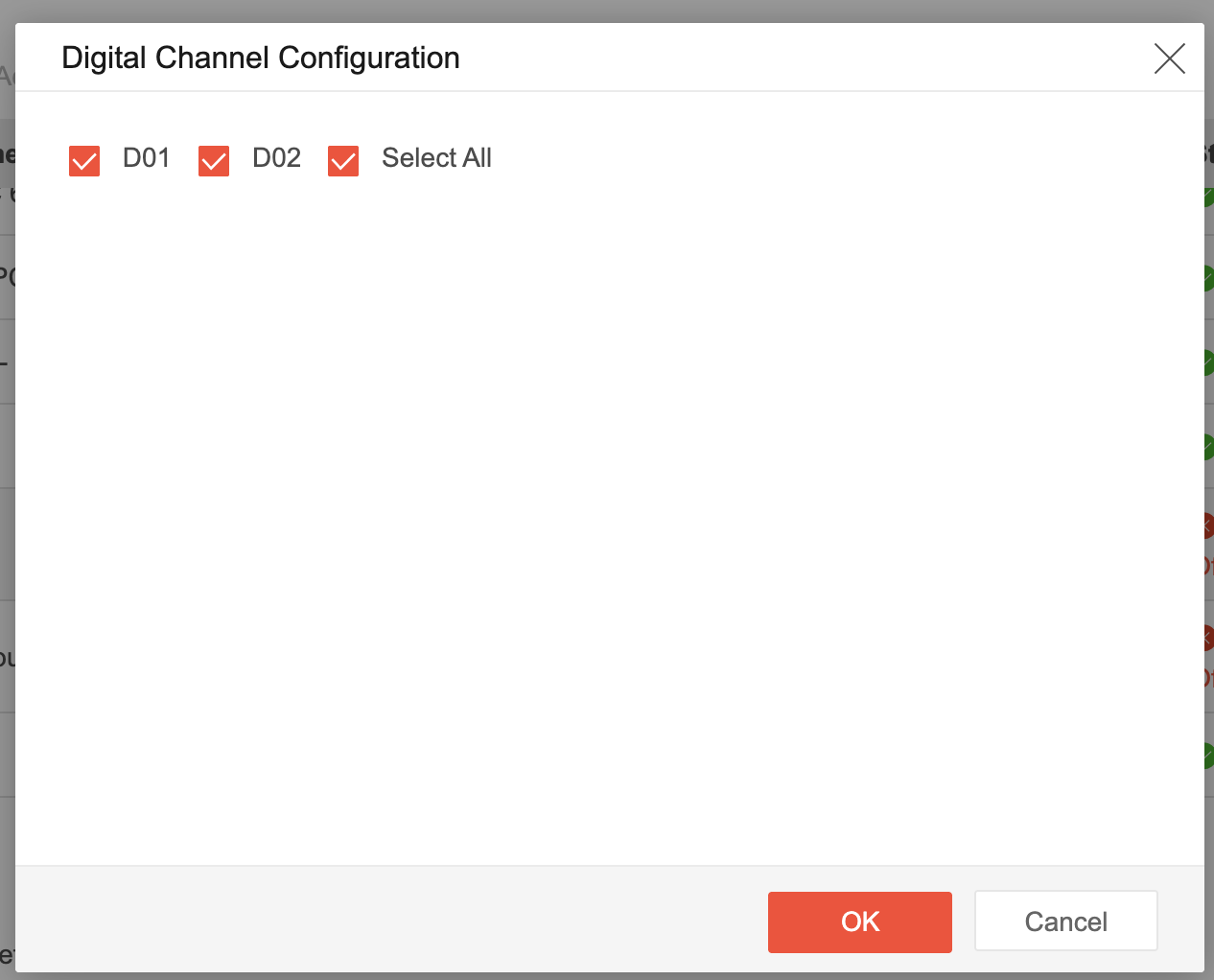

- Use this option when the Hikvision recorder supports multi-channel ONVIF devices.
- Each selected channel appears as a separate channel entry on the recorder.
- Recorder limits still apply: available NVR channels, resolution, bitrate, codec support, and recording capacity.
- If the recorder does not support multi-channel ONVIF correctly, add only the required channel or use separate ITVDesk virtual camera profiles where appropriate.
Important notes
- Some Hikvision firmware versions use different labels for ONVIF port, management port, channel port or IP channel.
- If the recorder is a PoE model, make sure the ITVDesk computer and recorder can communicate on the correct LAN interface.
- If the camera shows offline, check the ITVDesk ONVIF/Web port, RTSP/RTSPS port, Windows Firewall, router/firewall rules and network segment.
- For secure or remote deployments, prefer protected networks, VPN, HTTPS/RTSPS where supported, and strong ONVIF credentials.
- Hikvision menu names and supported features can differ by firmware version, recorder model, and region.
Troubleshooting
- Device is not detected: check ITVDesk ONVIF port, IP address, firewall, UDP discovery and network segment.
- Camera is offline: verify ONVIF username/password, recorder IP channel settings and whether the ITVDesk camera is running.
- Live view opens but video does not play: verify RTSP/RTSPS port access, codec support, resolution, bitrate and stream profile.
- Only one channel appears: check Hikvision Digital Channel Configuration, recorder channel limits, or add additional streams through Custom Protocol.
- Authentication fails: verify the configured ONVIF username/password in ITVDesk and test again before enforcing stricter security settings.
Related documentation: Hikvision NVR Example | Network Camera Test | Change Service Ports
Related Helpdesk articles: Add an RTSP, SRT, RTSPS, or ONVIF source | Stream a Specific Application Window | Retrieve direct RTSP, RTSPS, or SRT stream URLs | Adjust Video Quality Settings | Change ONVIF, RTSP, HTTPS, RTSPS, and service ports