Frequently Asked Question
Novus NMS - Integrating ITVDesk with Novus NMS VMS
Last Updated 3 months ago
A common ITVDesk integration starts with a desktop or workstation screen. In ITVDesk, create a new virtual camera profile, select a media source such as Computer Screen Live / Desktop Capture, test the stream, and then add it to Novus NMS as an ONVIF camera or direct RTSP/RTSPS/SRT stream.
This is useful when you need to record operator screens, POS workstations, control-room desktops, applications, dashboards or other computer activity inside the same VMS/NVR system used for physical cameras.
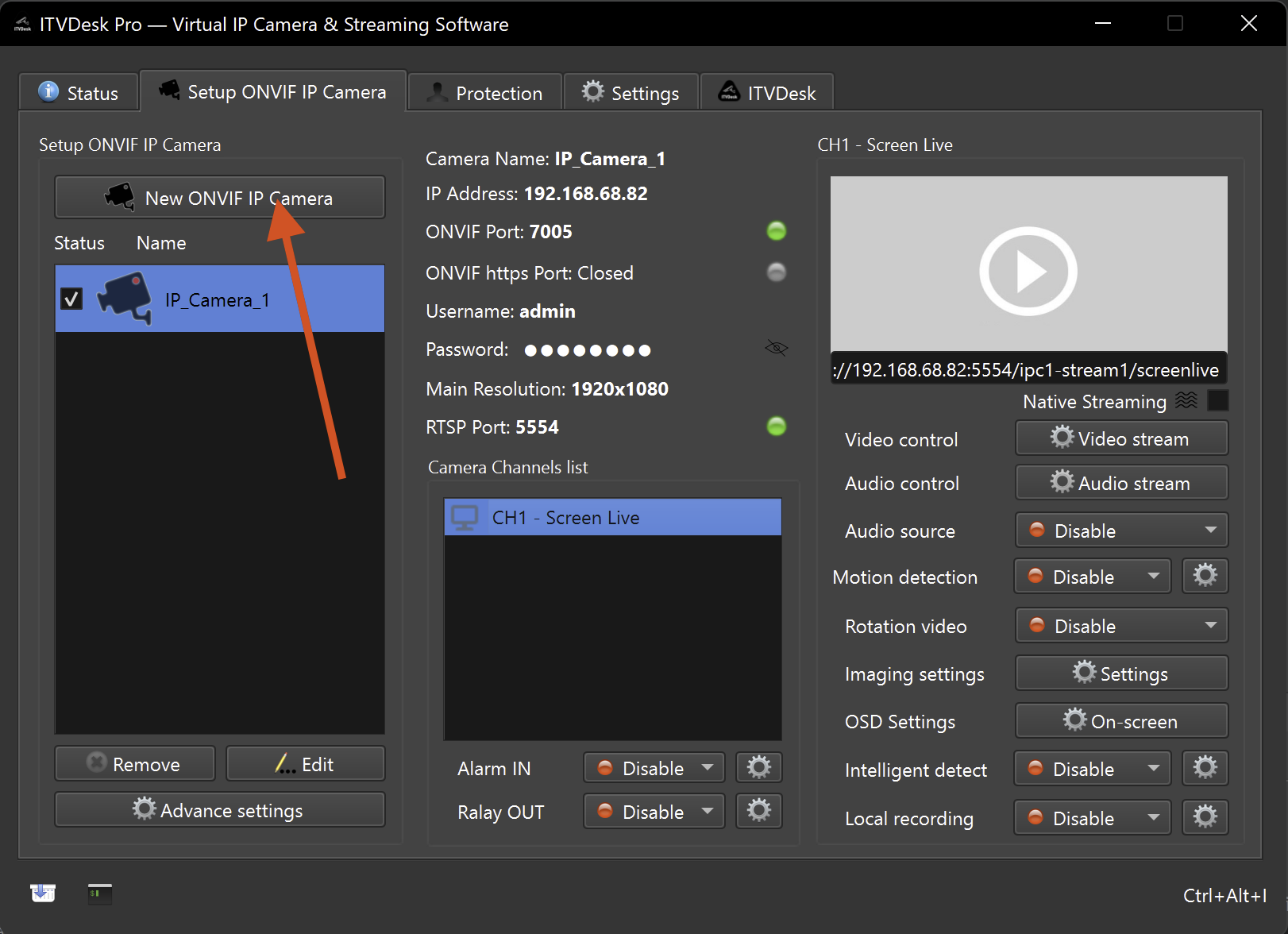
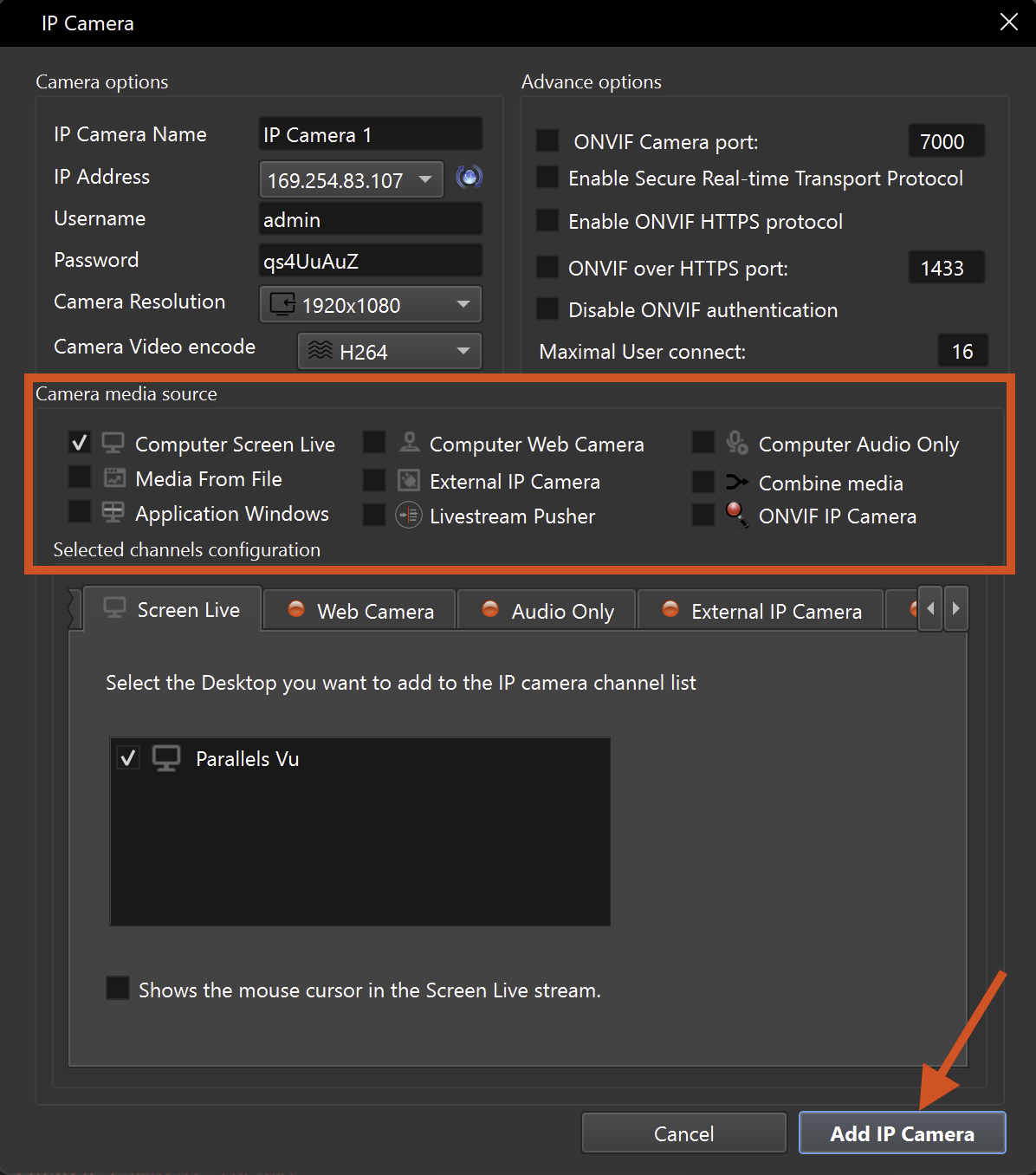
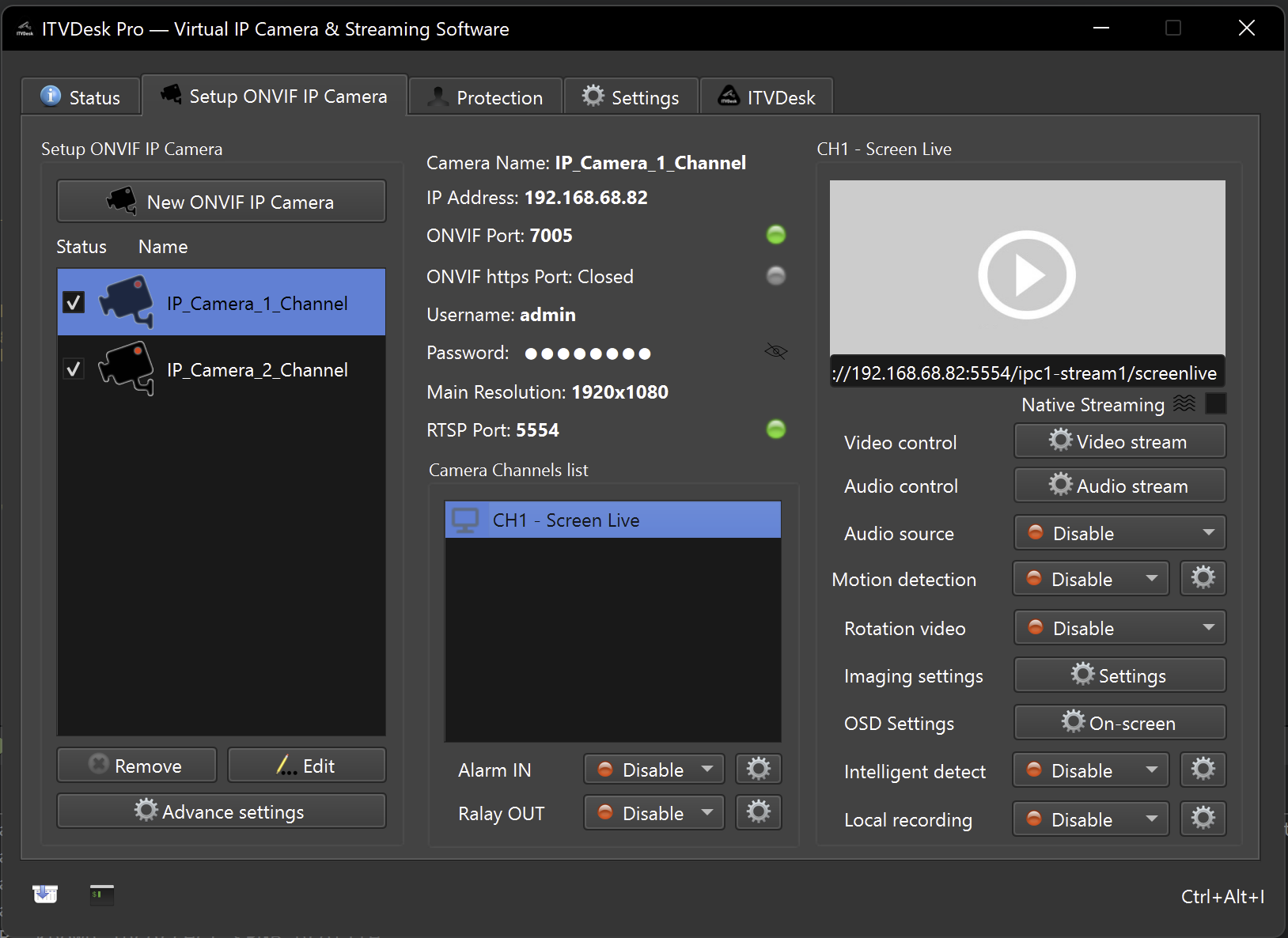
Recommended Novus setup
- Try ONVIF discovery first if the ITVDesk computer is on the same network segment.
- Use manual ONVIF add if discovery is not available.
- For direct stream setup, copy the RTSP/RTSPS/SRT URL from ITVDesk and add it as a stream source.
- Match the codec and resolution to the recorder profile.
Verify in Novus NMS
- Confirm the ITVDesk virtual camera appears online in the VMS/NVR device list.
- Open live view and verify video, resolution, frame rate and codec.
- Start a short recording and confirm playback/search works as expected.
- Test events, audio or PTZ only if your VMS/NVR model supports those ONVIF features.
- If discovery fails, add ITVDesk manually by IP address, ONVIF port, username and password.
Troubleshooting
- If the device is not detected, check the ITVDesk ONVIF port, IP address, firewall and network segment.
- If live view opens but video does not play, verify RTSP/RTSPS port access and codec support in the VMS/NVR.
- If authentication fails, temporarily verify the configured ONVIF username/password and then re-enable the required security level.
- Recorder menus and wording differ by firmware version, so use the vendor-specific terms as a guide rather than a fixed screen-by-screen rule.
Related documentation: Retrieve Stream URLs | RTSPS Secure RTSP | SRT Streaming